> ## Documentation Index
> Fetch the complete documentation index at: https://anaconda.com/docs/llms.txt
> Use this file to discover all available pages before exploring further.
# Skills
Skills are Markdown files that provide your agents with reusable workflows and context for when to use their tools. Agent Studio maintains a catalog of skills that any agent can use. Add a skill once, then enable it for individual agents from their configuration page.
## Viewing available skills
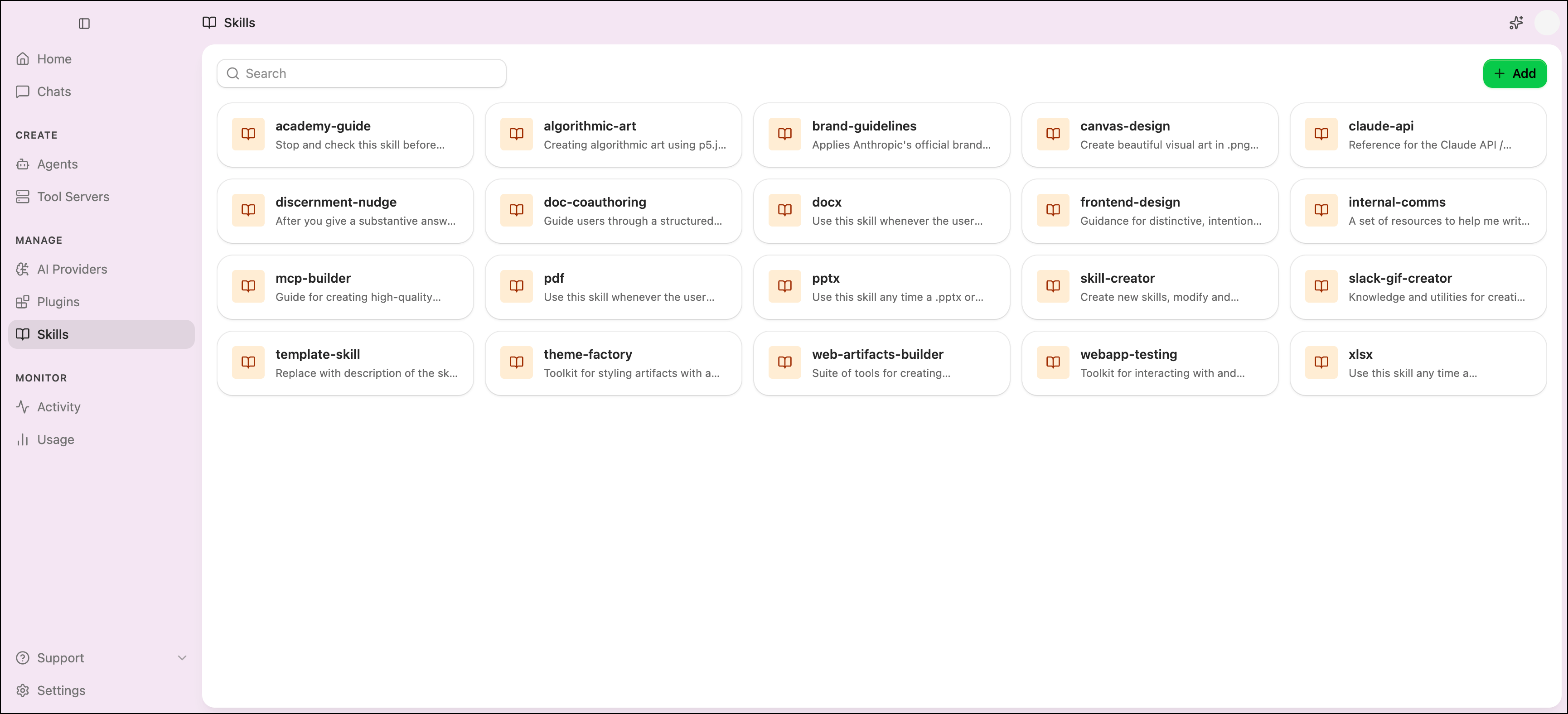
Select **Skills** from the left-hand navigation to view your skill catalog. Skills appear as cards showing the skill name and a short description.
 Click a skill's card to open its details dialog. The dialog has two tabs:
* **About**: Displays the full skill content.
* **Security**: Runs a security scan on the skill's files.
From the details dialog you can also click **Delete** to remove the skill, or **Add to Agents** to enable it for one or more agents.
## Adding a skill
1. Select **Skills** from the left-hand navigation.
2. Click **Add** in the upper-right corner.
3. Choose a source and configure the skill:
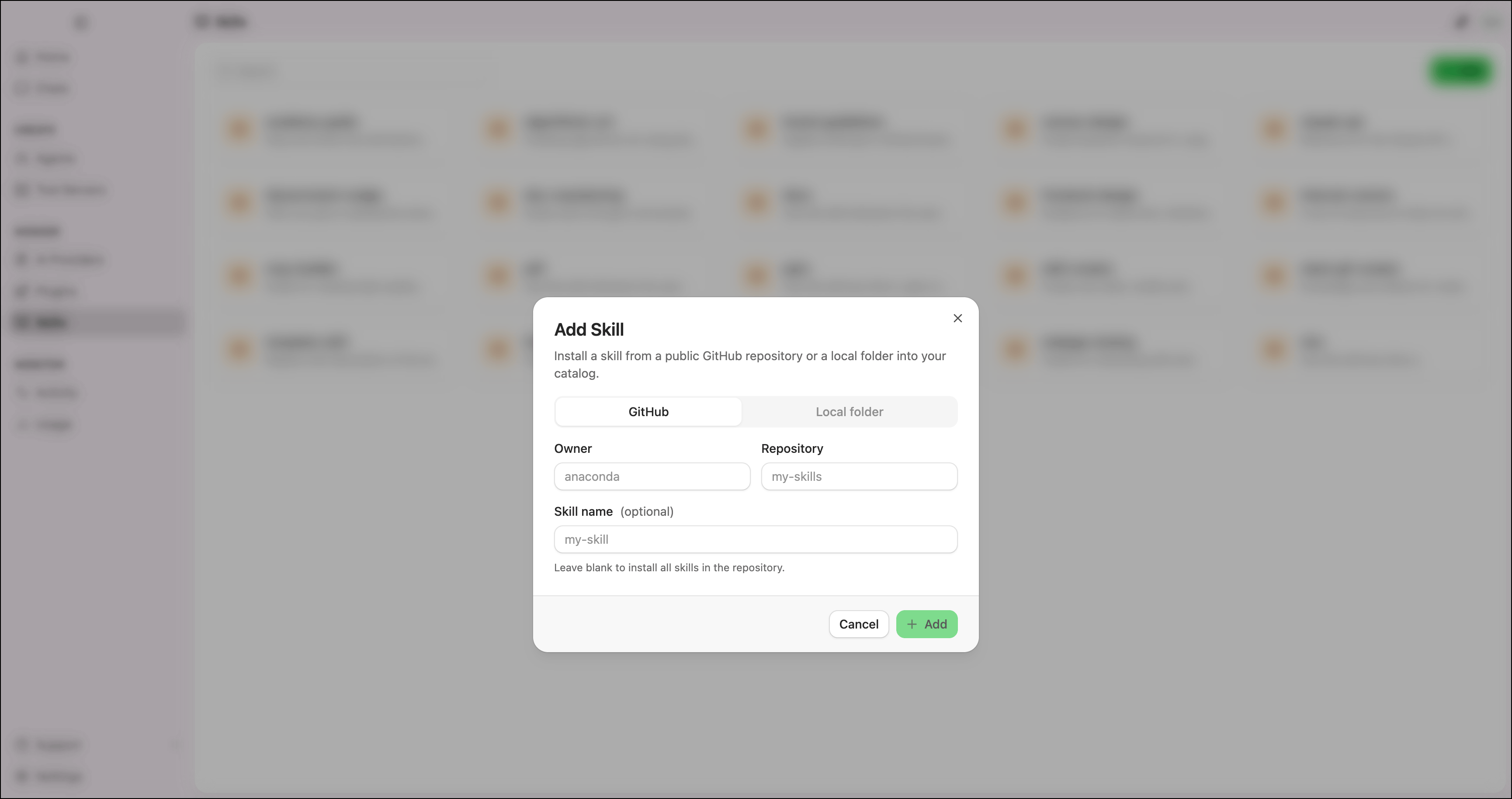
Add a skill from a public GitHub repository.
1. Enter the repository **Owner** and **Repository** name.
2. (Optional) Enter a **Skill name** to add a specific skill from the repository. Leave this field blank to add all skills in the repository.
3. Click **Add**.
Click a skill's card to open its details dialog. The dialog has two tabs:
* **About**: Displays the full skill content.
* **Security**: Runs a security scan on the skill's files.
From the details dialog you can also click **Delete** to remove the skill, or **Add to Agents** to enable it for one or more agents.
## Adding a skill
1. Select **Skills** from the left-hand navigation.
2. Click **Add** in the upper-right corner.
3. Choose a source and configure the skill:
Add a skill from a public GitHub repository.
1. Enter the repository **Owner** and **Repository** name.
2. (Optional) Enter a **Skill name** to add a specific skill from the repository. Leave this field blank to add all skills in the repository.
3. Click **Add**.
 Add a skill from a folder on your machine.
1. Click **Browse** and select a folder. The folder must contain a `SKILL.md` file, or be a parent folder of skill subfolders to install them all.
2. Click **Add**.
## Scanning skills for security threats
Agent Studio can scan skills for security vulnerabilities using static analysis and optional AI-assisted reasoning. Scans identify potential threats such as dangerous code execution patterns, suspicious behavior, and injection risks.
Scan results are best-effort and are not a certification of safety.
To scan a skill:
1. Select **Skills** from the left-hand navigation.
2. Click the skill's card to open its details dialog.
3. Select the **Security** tab.
4. (Optional) Enable **Deep scan with AI** for an additional semantic pass that sends the skill's content to your configured AI provider.
5. Click **Start scan**.
To run the scan again, click **Re-scan**.
### Severity levels
The scan summary displays the highest severity found across all findings:
Immediate security risk requiring attention.
Significant risk that should be addressed before use.
Potential risk worth reviewing (for example, use of `subprocess.run` with untrusted input).
Minor concern with limited risk.
No issues found.
### Deep scan with AI
By default, scans use offline analyzers (static analysis, bytecode inspection, and behavioral analysis). Enabling **Deep scan with AI** adds a semantic pass that uses your configured AI provider to reason about the skill's intent.
Deep scan with AI requires a configured AI provider with a valid API key. If no compatible provider is available, the toggle is disabled.
## Enabling a skill for an agent
Once a skill is in the catalog, you can enable it for individual agents from the agent's configuration page. See [Skills](/docs/anaconda-desktop/agent-studio/agents#skills) for instructions.
Add a skill from a folder on your machine.
1. Click **Browse** and select a folder. The folder must contain a `SKILL.md` file, or be a parent folder of skill subfolders to install them all.
2. Click **Add**.
## Scanning skills for security threats
Agent Studio can scan skills for security vulnerabilities using static analysis and optional AI-assisted reasoning. Scans identify potential threats such as dangerous code execution patterns, suspicious behavior, and injection risks.
Scan results are best-effort and are not a certification of safety.
To scan a skill:
1. Select **Skills** from the left-hand navigation.
2. Click the skill's card to open its details dialog.
3. Select the **Security** tab.
4. (Optional) Enable **Deep scan with AI** for an additional semantic pass that sends the skill's content to your configured AI provider.
5. Click **Start scan**.
To run the scan again, click **Re-scan**.
### Severity levels
The scan summary displays the highest severity found across all findings:
Immediate security risk requiring attention.
Significant risk that should be addressed before use.
Potential risk worth reviewing (for example, use of `subprocess.run` with untrusted input).
Minor concern with limited risk.
No issues found.
### Deep scan with AI
By default, scans use offline analyzers (static analysis, bytecode inspection, and behavioral analysis). Enabling **Deep scan with AI** adds a semantic pass that uses your configured AI provider to reason about the skill's intent.
Deep scan with AI requires a configured AI provider with a valid API key. If no compatible provider is available, the toggle is disabled.
## Enabling a skill for an agent
Once a skill is in the catalog, you can enable it for individual agents from the agent's configuration page. See [Skills](/docs/anaconda-desktop/agent-studio/agents#skills) for instructions.