> ## Documentation Index
> Fetch the complete documentation index at: https://anaconda.com/docs/llms.txt
> Use this file to discover all available pages before exploring further.
# Documentation MCP server
export const Extensions = () => {
return ;
};
export const PreviewButton = ({children, href}) => {
if (!href) return null;
const label = children + " (opens in new tab)";
return
{children}
;
};
The Anaconda documentation MCP server lets AI coding assistants search and retrieve Anaconda documentation in real time, so you get accurate, up-to-date answers without leaving your chat window or code editor.
## Connect from the contextual menu
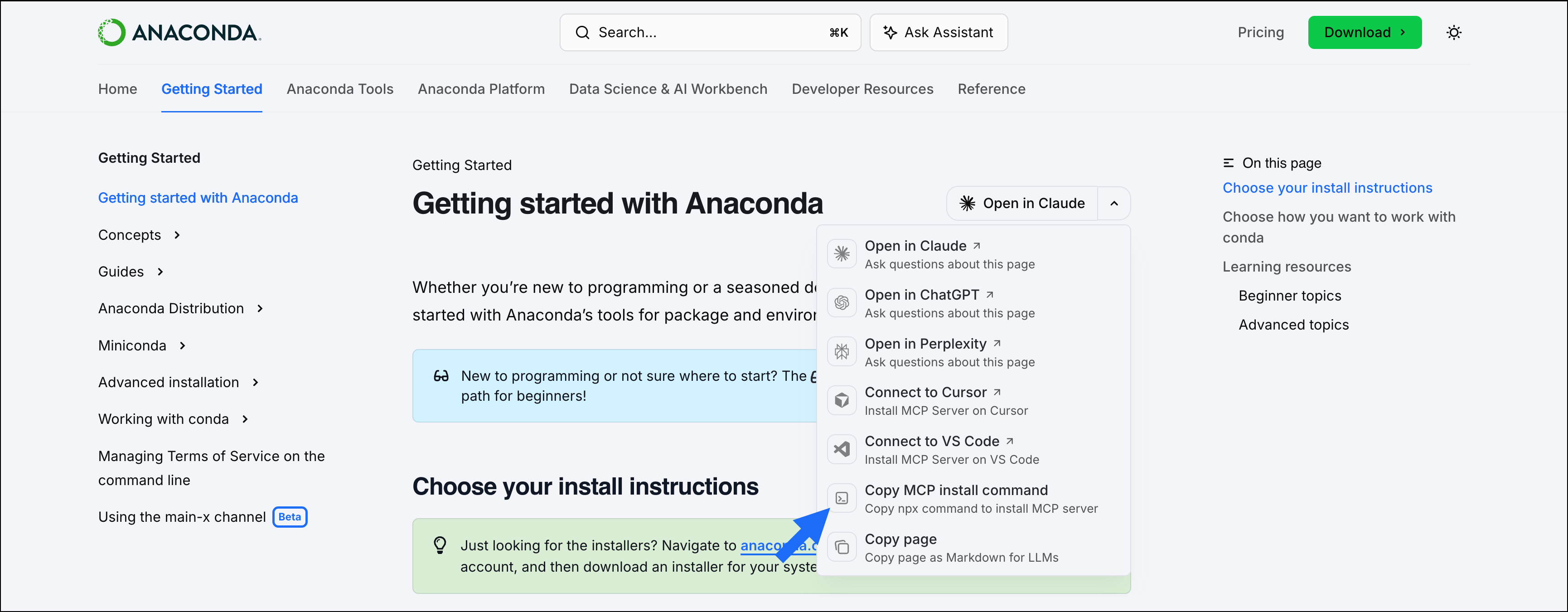
The **Copy MCP install command** button in the contextual menu provides a one-line setup command:
This button copies the following command, which you can run in your shell application to automatically configure the MCP server in supported tools:
```bash theme={null}
npx add-mcp https://www.anaconda.com/docs/mcp
```
## Manual setup
1. Open [Claude](https://claude.ai) or Claude Desktop.
2. In the left-hand navigation, select **Customize**, then select **Connectors**.
3. Click **Add connectors**, then **Add custom connector**.
Organization-level settings might prevent you from adding custom connectors.
4. Enter `Anaconda Docs` as the name and `https://www.anaconda.com/docs/mcp` as the remote MCP server URL.
5. Click **Add**.
Run the following command in your terminal:
```bash theme={null}
claude mcp add --transport http "Anaconda Docs" https://www.anaconda.com/docs/mcp
```
Verify the server was added:
```bash theme={null}
claude mcp list
```
See the [Claude Code documentation](https://code.claude.com/docs/en/mcp) for details.
To connect the Anaconda MCP server to Cursor, click **Install in Cursor**:
Install in Cursor
To manually connect the MCP server, follow these steps:
1. Use Ctrl+Shift+P (Windows)/Cmd+Shift+P (macOS) to open the command palette and search for **Open MCP settings**.
2. Under **Installed MCP Servers**, click **New MCP Server**.
3. Paste the following in the `mcp.json` file:
```json theme={null}
{
"mcpServers": {
"Anaconda Docs": {
"url": "https://www.anaconda.com/docs/mcp"
}
}
}
```
4. Test the connection by asking “What tools do you have available?” in Cursor's chat. Cursor should show the Anaconda MCP server as an available tool.
To connect the Anaconda MCP server to VS Code, click **Install in VS Code**:
Install in VS Code
To manually connect the MCP server, create a `.vscode/mcp.json` file and add the following:
```json theme={null}
{
"servers": {
"Anaconda Docs": {
"type": "http",
"url": "https://www.anaconda.com/docs/mcp"
}
}
}
```
To test the connection, open a new chat session (Ctrl+Alt+I on Windows/Ctrl+Cmd+I on macOS) and ask "Which MCP tools do you have available?" to confirm that the Anaconda MCP server appears in the response.
See the [VS Code documentation](https://code.visualstudio.com/docs/agent-customization/mcp-servers) for details.
 This button copies the following command, which you can run in your shell application to automatically configure the MCP server in supported tools:
```bash theme={null}
npx add-mcp https://www.anaconda.com/docs/mcp
```
## Manual setup
This button copies the following command, which you can run in your shell application to automatically configure the MCP server in supported tools:
```bash theme={null}
npx add-mcp https://www.anaconda.com/docs/mcp
```
## Manual setup