

- Change the location of your downloaded models
- View and update your Desktop API information
- Choose to share anonymous data with Anaconda
- Log out of your Anaconda account
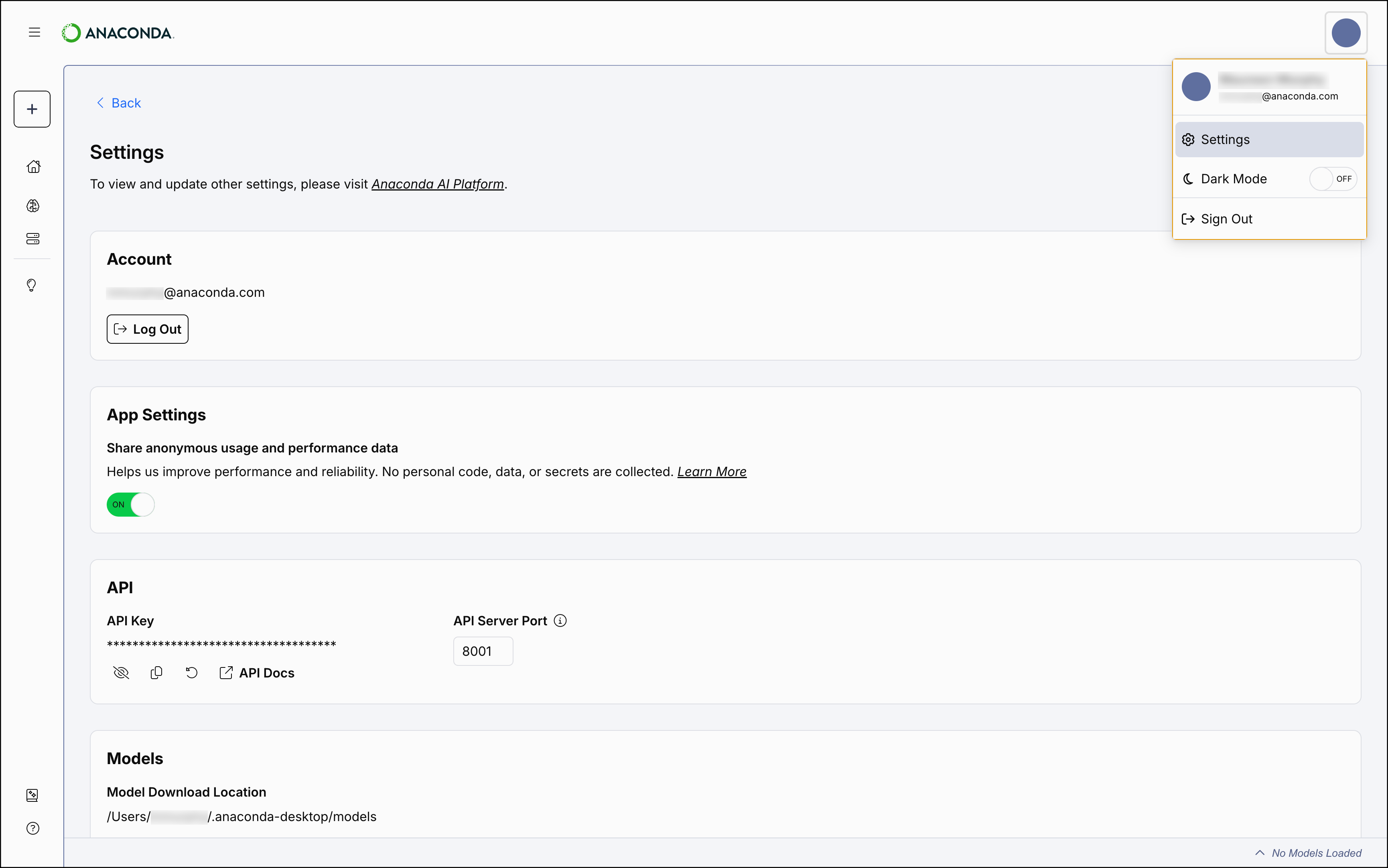
- Select the user dropdown menu in the upper-right corner.
- Select Settings.
Enabling beta features
Anaconda Desktop provides early access to experimental features through the BETA Features section on the Settings page. When enabled, these features appear in the left-hand navigation under a BETA section. To enable or disable beta features:- Select the user dropdown menu in the upper-right corner.
- Select Settings.
- Scroll down to the BETA Features section.
- Toggle features
ONorOFFas needed.
The BETA section in the left-hand navigation only appears when at least one beta feature is enabled. If all beta features are toggled off, the section is hidden.
If your Anaconda account belongs to an organization on Anaconda Platform (Cloud), your organization administrator can restrict access to beta features. When a feature is disabled by your admin, its toggle displays a and cannot be enabled. For more information, see Organization settings.
If your Anaconda account belongs to an organization on Anaconda Platform (Cloud), your organization administrator can restrict access to beta features. When a feature is disabled by your admin, its toggle displays a and cannot be enabled. For more information, see Organization settings.